> For the complete documentation index, see [llms.txt](https://docs.hesh.app/llms.txt). Markdown versions of documentation pages are available by appending `.md` to page URLs; this page is available as [Markdown](https://docs.hesh.app/manuals/production/launching-productions.md).
# Launching productions
## Overview
This page covers **all aspects related to production launch**, including the process of launching products, working with launched production items, and handling performers in the production process.
You will learn how to create and configure products for launch, manage launched production items, and assign and track performers.
By reading this article, learn how to launch production, manage its elements, and optimize the work of performers in the production process.
## Product Launching
Working with productions is the most interesting thing. But first, the production needs to be launched.
Product Launch modal window
Production launch can happen in following ways:
* by pressing “In progress” status from “To do” on the production item
* by pressing Launch button in More actions menu on on the production item
* by pressing “Add and Launch” button on the “New production” pop-up
* by pressing “Start” button on a production workflow canvas
* by pressing “Status” icon on a production workflow canvas
* by pressing Launch button after multi select function
{% hint style="warning" %}
New production can be launched only for products/components with active items: product, version, configuration, workflow and variant.
{% endhint %}
**Let get closer to one of the way:**
1. Open Production page.
2. Click on production status and change it from "To do" to "In progress".
3. In lauch modal window select following parametrs - version, configuration, variant, workflow, production method.
4. Select the same parametr for components.
5. Check your product before launchig.
6. Click on "Lauch" button for saving.
{% hint style="info" %}
The system selects the same variants for the components of the main production if they are identical.
For example, for the S/Red main production and the S/Red component. And S/Red and Red/S will be considered different.
{% endhint %}
{% @arcade/embed flowId="HXD9SiiqJoGHOeET2j8e" url="" %}
{% hint style="info" %}
By default, the latest published production version, the first configuration, and the first available workflow are pulled up.
{% endhint %}
**Let's consider other ways to lauch productions:**
* by pressing Launch button in More actions menu on on the production item
{% @arcade/embed flowId="NFRaQcYITEdKEYTpyYby" url="" %}
* by pressing “Add and Launch” button on the “New production” pop-up
{% @arcade/embed flowId="WqCj5MG9f3gPNwV3LuFz" url="" %}
* by pressing “Start” button on a production workflow canvas
{% @arcade/embed flowId="ElQ2rdYWK32hBLXUUE6V" url="" %}
* by pressing Launch button after multi select function
{% @arcade/embed flowId="exkEiYwQFsdGGyeTPTpm" url="" %}
## Default info about launched production item
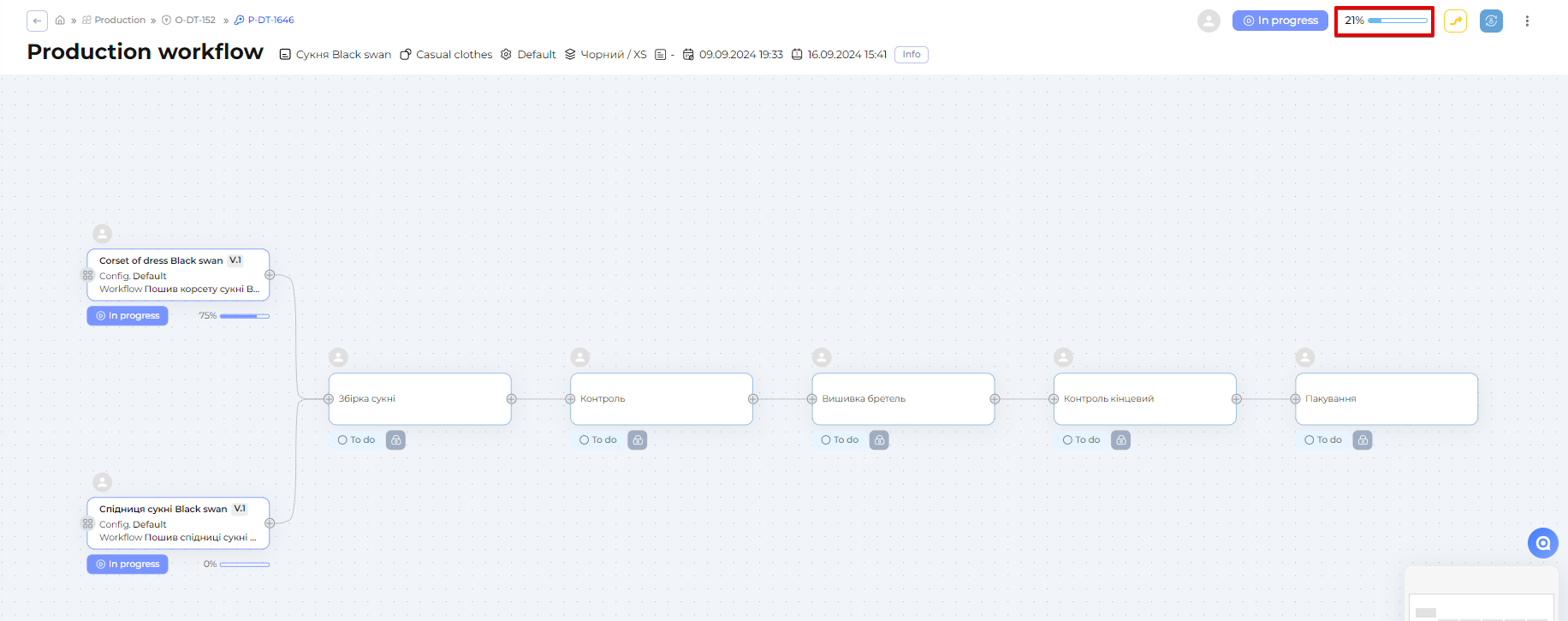
* Production in To do status and newly launched production always have 0% progress bar
* A production progress bar has the same color as a status icon.
* The progress bar formula (%): 100% / number of all tasks in production) \* number of tasks in Done/From stock/Canceled statuses (*include tasks inside components)*.
* The progress bar of a component is calculated according to the component's readiness and affects the progress bar of the entire production.
* By default, the production priority is medium and priority changes are not inherited by all components or tasks.
* By default, the order's priority is medium and changes in priority are followed by all production components.
* Hesh calculates and shows "Time spent" information on every press of Info button.
Learn more about each part of the Hesh functionality in the articles ahead...
---
# Agent Instructions
This documentation is published with GitBook. GitBook is the documentation platform designed so that both humans and AI agents can read, navigate, and reason over technical content effectively. Learn more at gitbook.com.
## Querying This Documentation
If you need additional information that is not directly available in this page, you can query the documentation dynamically by asking a question.
Perform an HTTP GET request on the current page URL with the `ask` query parameter, and the optional `goal` query parameter:
```
GET https://docs.hesh.app/manuals/production/launching-productions.md?ask=&goal=
```
`ask` is the immediate question: it should be specific, self-contained, and written in natural language.
`goal` is optional and describes the broader end goal you are ultimately trying to accomplish on behalf of the user. GitBook uses it to tailor the answer towards what is most useful for that goal.
The response will contain a direct answer to the question and relevant excerpts and sources from the documentation.
Use this mechanism when the answer is not explicitly present in the current page, you need clarification or additional context, or you want to retrieve related documentation sections.